


Smart Projector – Turn Any Room Into a Cinema in Seconds
-
Delivery Time:Jul 31 - Aug 04
-
Warranty: Up to 7 days after receiving the product at home.

Smart Projector – Turn Any Room Into a Cinema in Seconds

Turn Any Space into a Real Cinema
Imagine coming home, turning off the lights and watching your favourite films, series and games on a giant screen, with impressive quality, without the need for an expensive television or complicated installations.
The Magcubic HY300 Pro was created for those who want premium entertainment, convenience and cutting-edge technology in their daily lives.

A Visual Experience that Impresses from the First Use
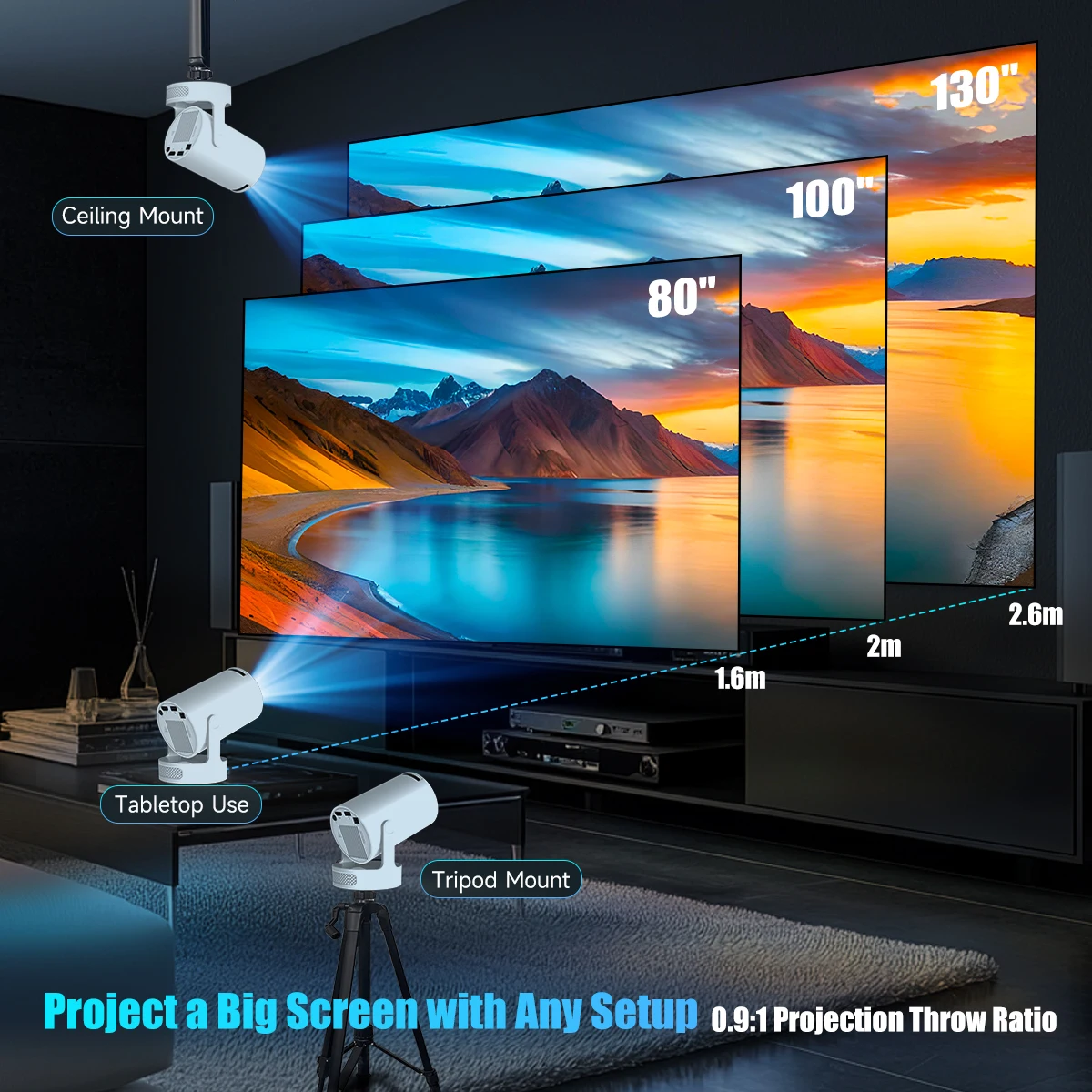
✔️ Projection up to 300 inches
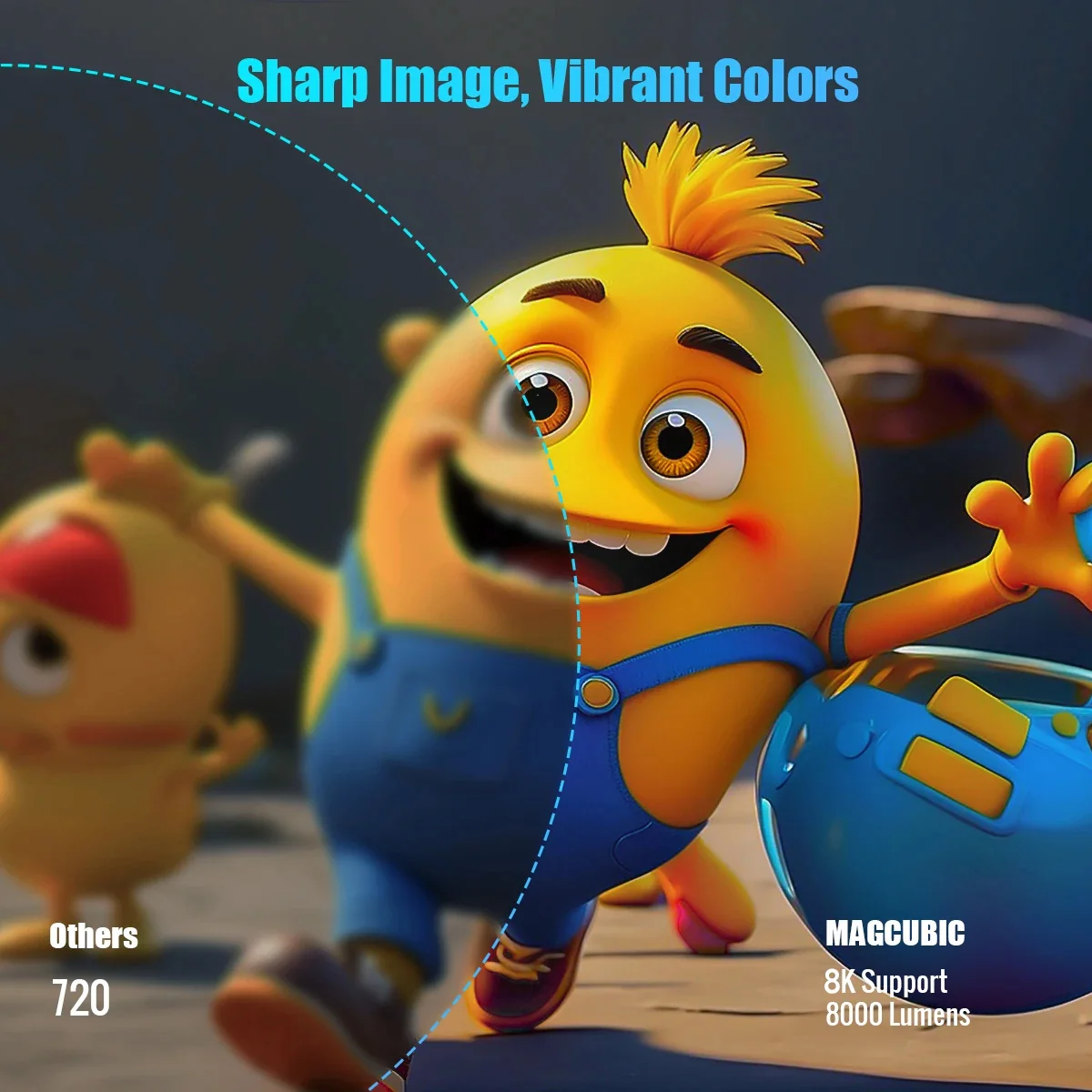
✔️ Support for 8K/4K content with advanced upscaling
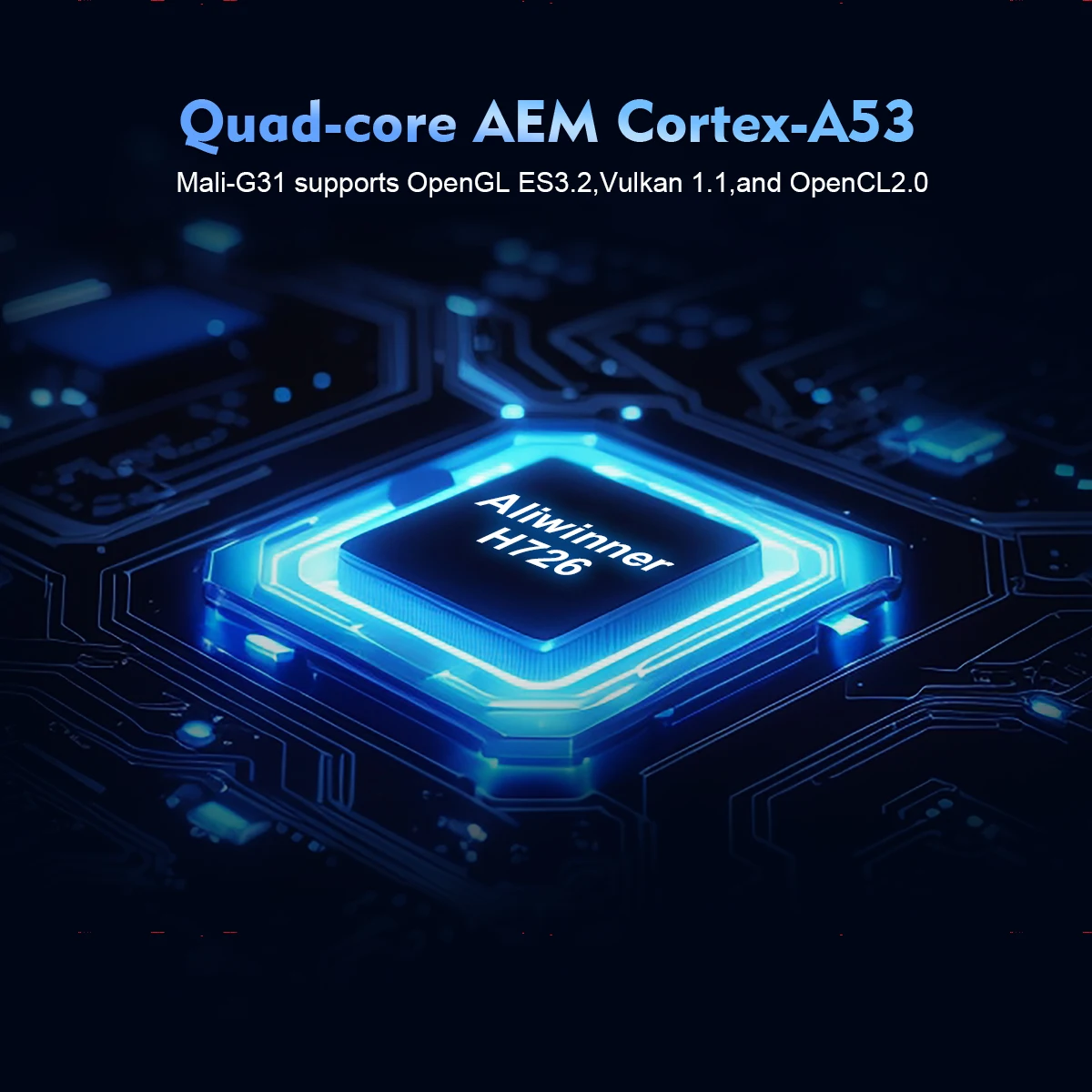
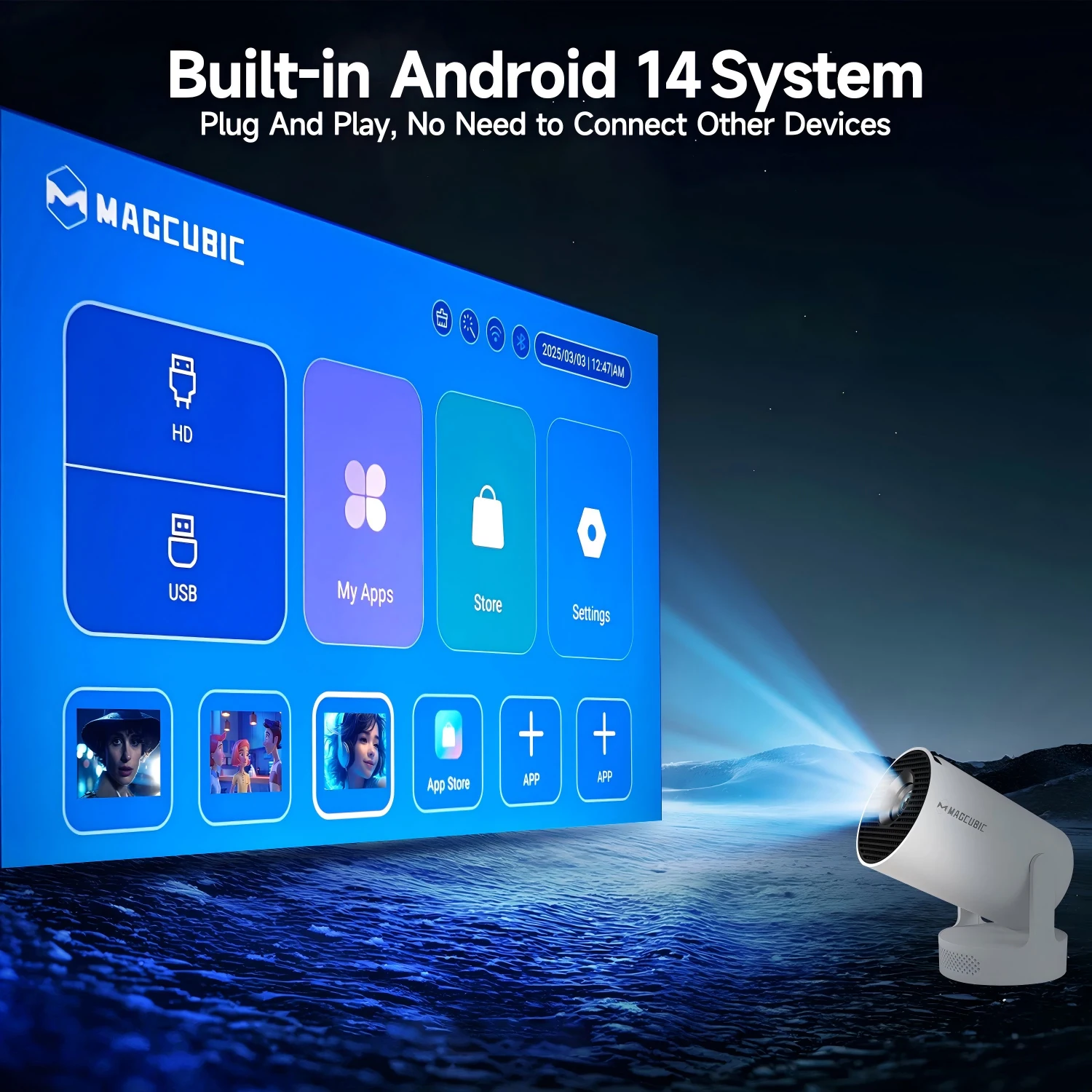
✔️ Integrated Android 14 – apps directly on the projector
✔️ Ultra-fast Dual WiFi 6 for streaming without lag
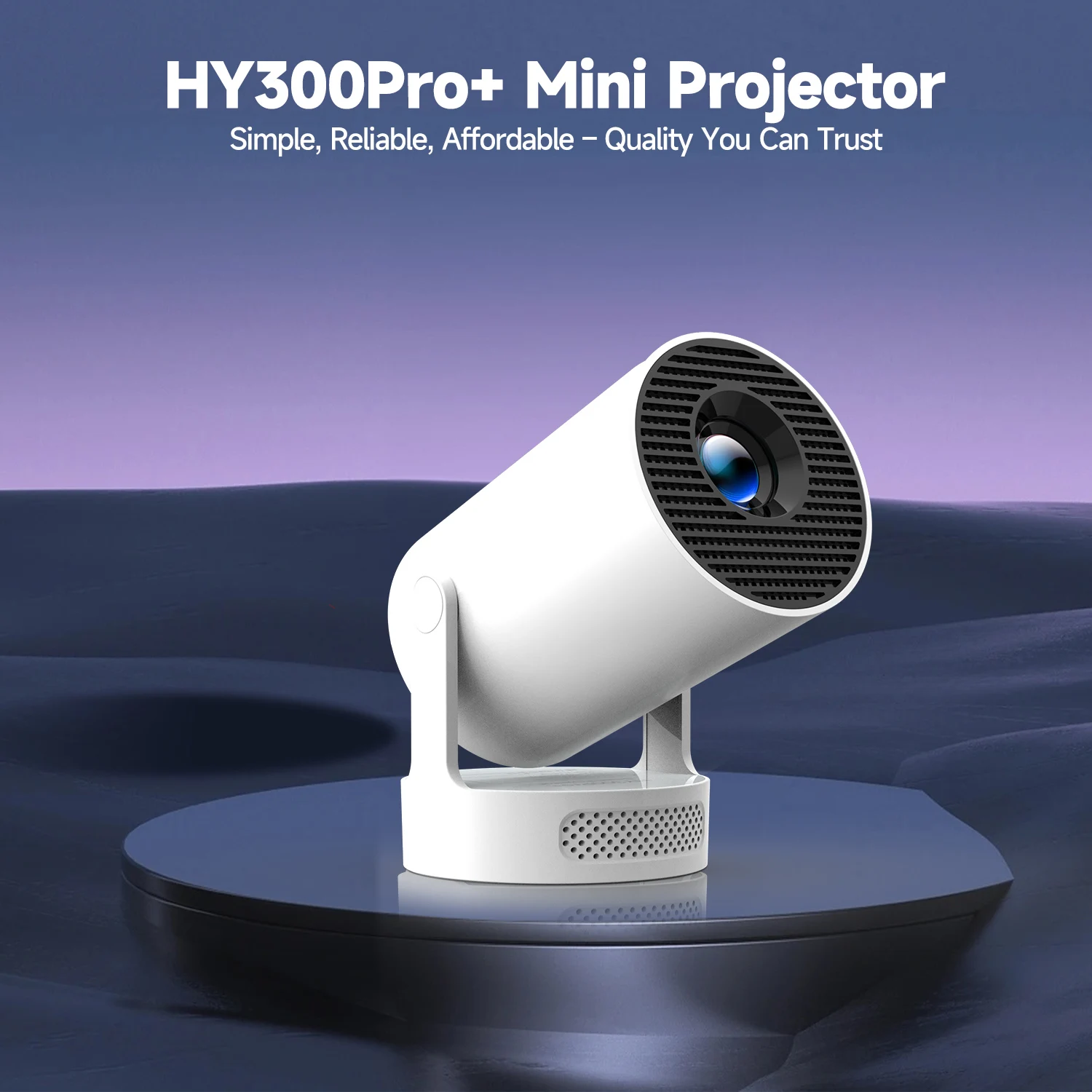
This is not just a projector.
It's a complete smart entertainment hub.
Technology that Simplifies Your Life
With 290 ANSI Lumens, the HY300 Pro delivers sharp images, vibrant colours and excellent contrast for films, series, sports and presentations — perfect for living rooms, bedrooms or even outdoor movie nights.
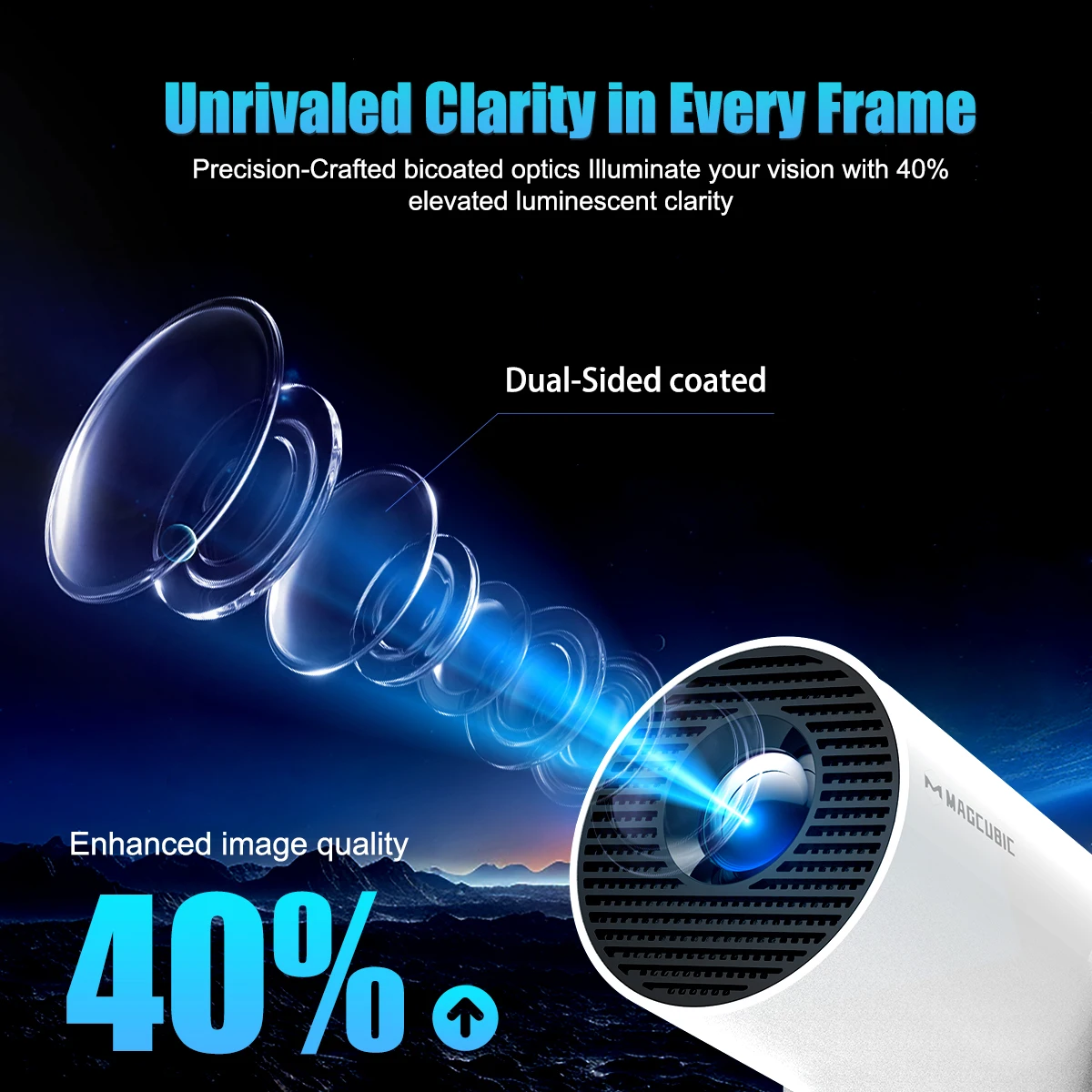
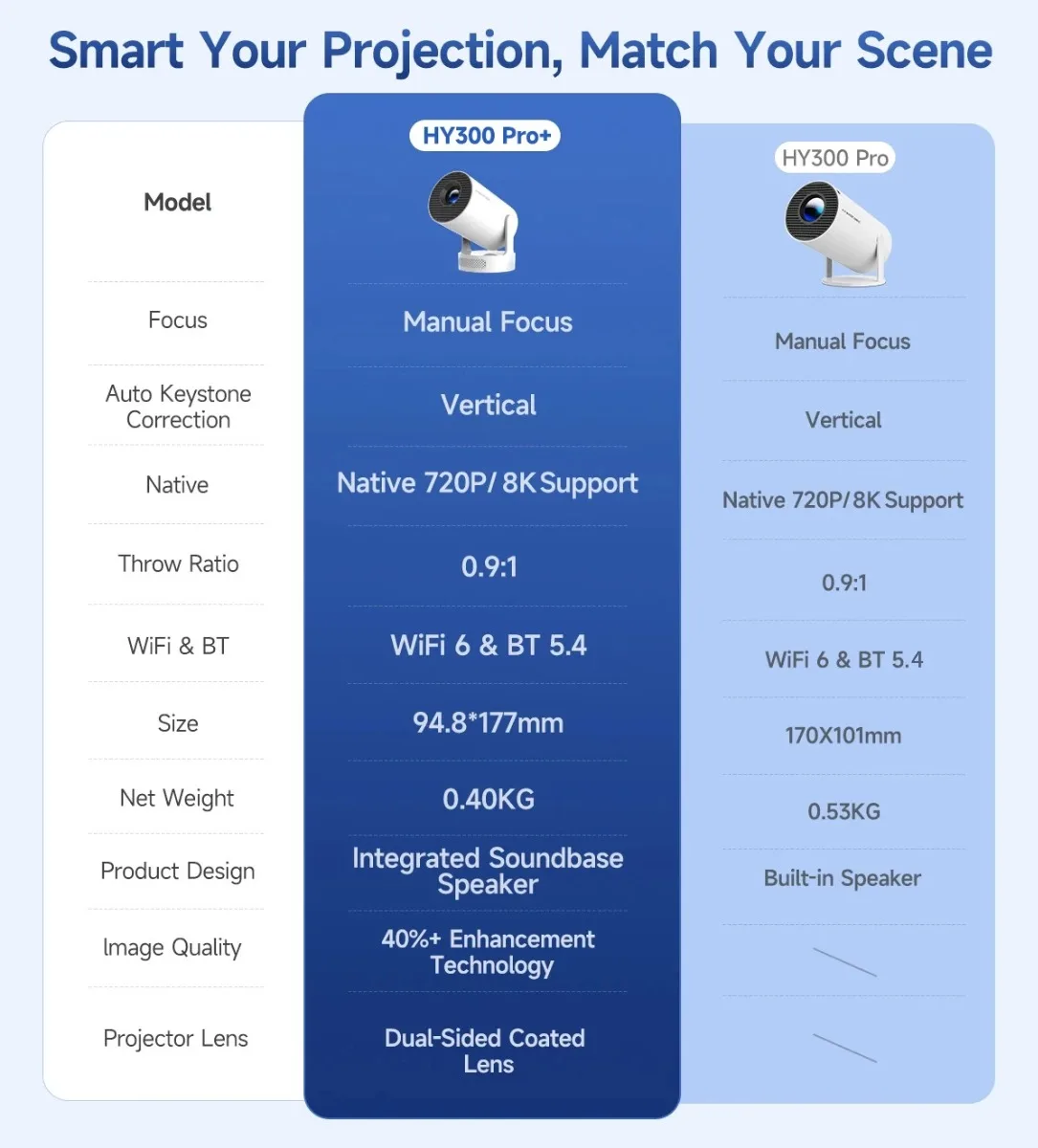
To help you fine-tune the sharpness of your projection, the HY300Pro+ projector features an internal gear mechanism. Simply rotate the gear to adjust the focus and achieve your desired level of clarity.
Built-in Android 14
Access Netflix, YouTube, Prime Video, Disney+ and more, without the need for a TV box or extra cables.
All directly on the projector, with a fast and intuitive interface.
Dual WiFi 6 + Bluetooth
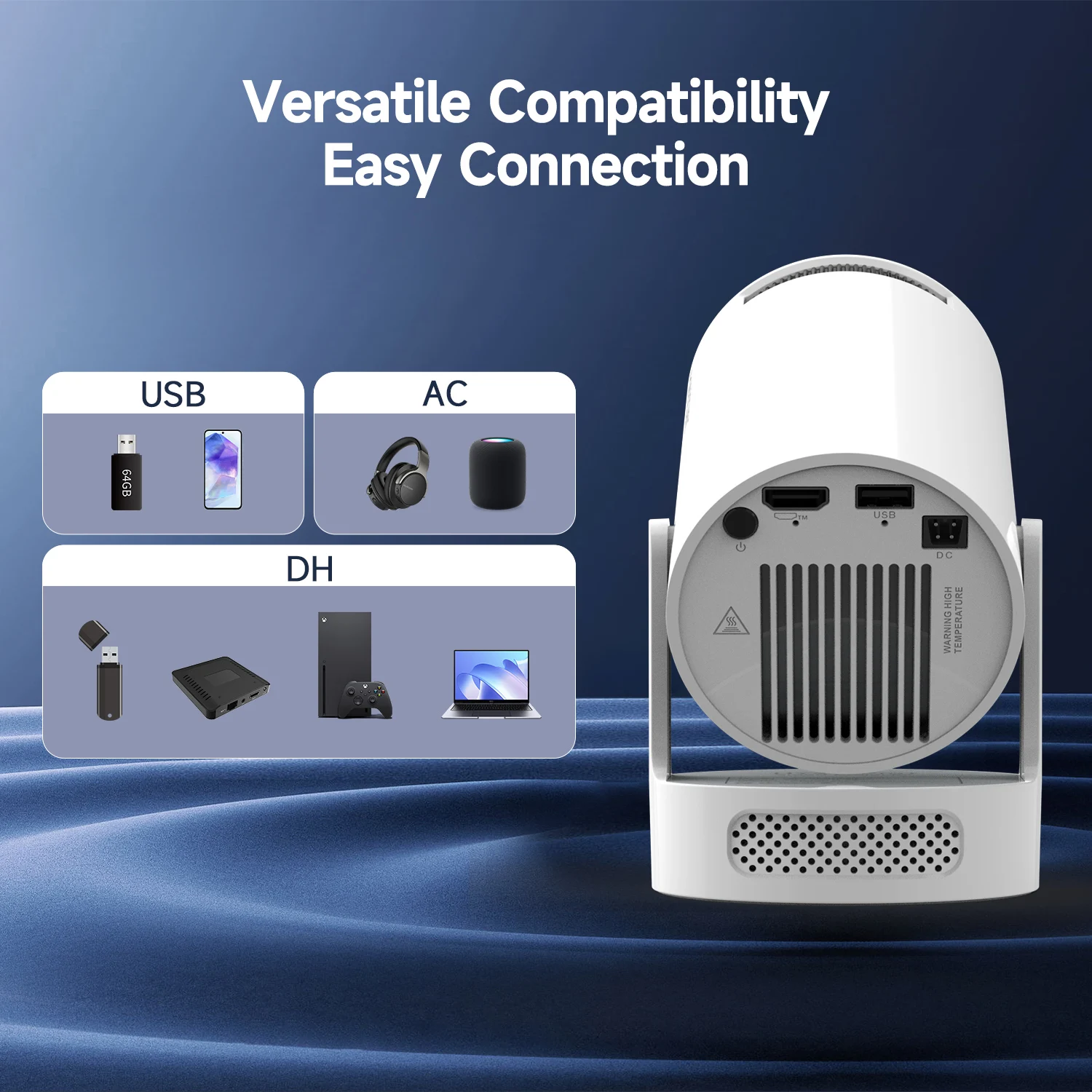
Stable streaming, fast downloads, and easy connection with:
-
Soundbars
-
Bluetooth headphones
-
Controllers, keyboards, and smartphones
No delays. No frustrations.

Immersive Sound and Compact Design
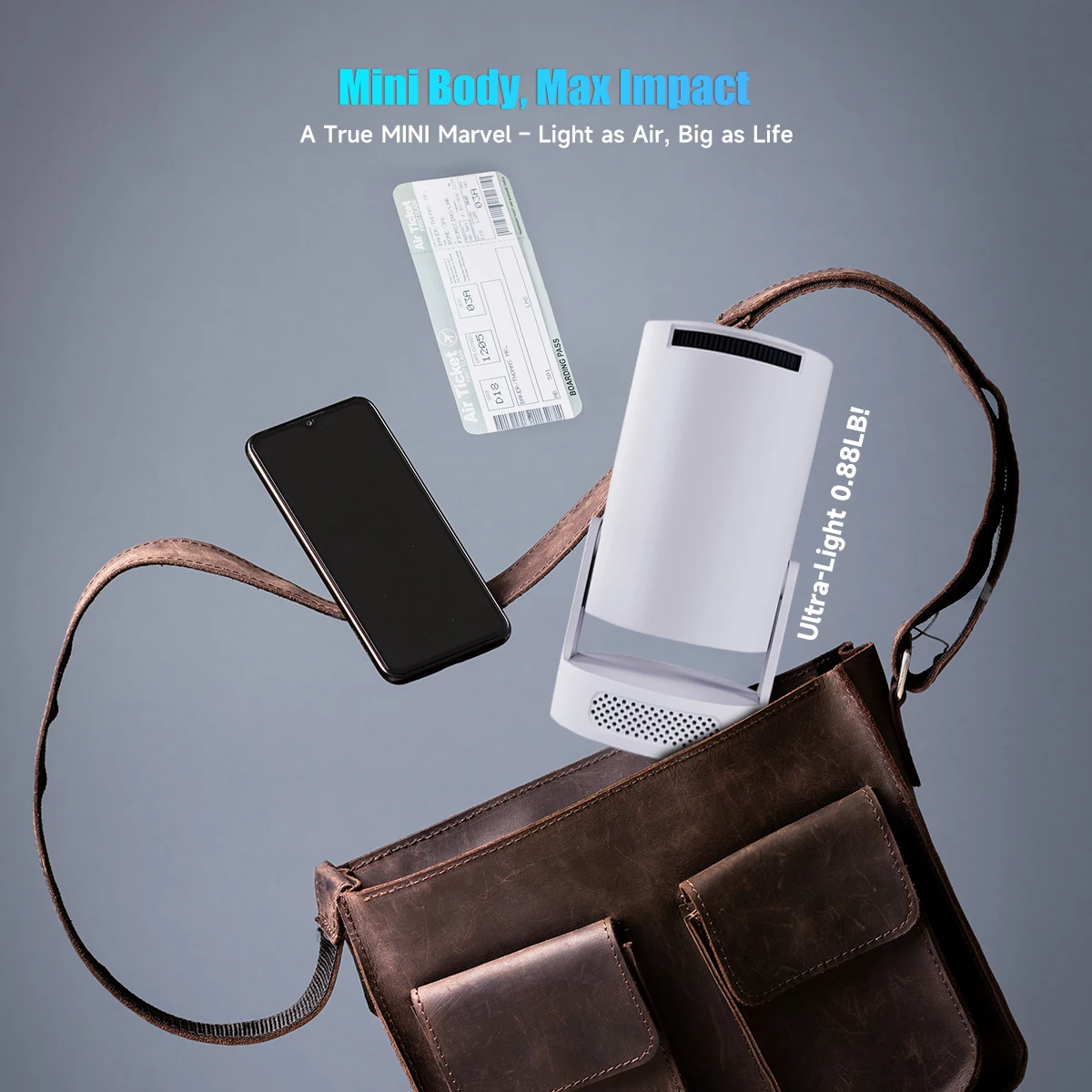
Built-in speakers and a modern, compact, and portable design — ideal for those who value style, mobility, and performance.
Automatic vertical keystone correction works best when the projector lens is directly facing the wall. If the results are unsatisfactory, follow these steps:
1. Place the projector on a flat surface and ensure the lens is perpendicular to the wall.
2. Navigate to Settings > Projection Settings > Keystone Correction > Initial Angle Correction.
3. If needed, disable the automatic keystone correction and make manual adjustments for optimal alignment.
More Comfort, More Fun, Fewer Limitations
✔️ Create family movie nights
✔️ Play games on the big screen
✔️ Watch sporting events as if you were at the stadium
✔️ Ideal for flats, houses and even travel
You no longer have to adapt to the screen. The screen adapts to you.
⚡ Perfect for those who want premium quality without paying absurd prices.
Bring Your Private Cinema Home Now
Limited time offer
Fast shipping to the UK
Secure and guaranteed purchase
👉 Add to cart now and transform the way you watch content today.
FAQ – Frequently Asked Questions
1. Is the projector really 8K?
It supports 8K and 4K content using intelligent upscaling technology, ensuring more detailed and smoother images at compatible resolutions.
2. I need a TV Box or Fire Stick?
No. Android 14 is already integrated, allowing you to install and use apps directly on the projector.
3. Does it work well in bright environments?
For the best experience, we recommend using it in environments with controlled lighting, Due to its brightness limitations, the projector is ideal for dark environments, such as a backyard at night, a campsite after sunset, a living room with closed curtains, or a bedroom with the lights turned off.
4. Can I connect external sound?
Yes. It has Bluetooth, allowing connection to soundbars, speakers and wireless headphones.

5. Is it easy to install?
Extremely. Just turn it on, connect to WiFi, and start using it. No professional installation required.
6. Why OTA Update Before Use?
To ensure optimal performance and take advantage of our latest features and updates, please upgrade to the most recent software version before first use. You can do this by navigating to Settings > About device > Online upgrade.
Troubleshooting
Wi-Fi
1. Ensure the projector and your router are within 16 feet (5 meters) of each other. Check if other devices connect to Wi-Fi.
2. Check the time zone settings by navigating to Settings > Time and Date > Time Zone and ensure it is accurate.
3. Attempt to connect to a different Wi-Fi network or use your phone's hotspot as an alternative.
4. Test both the 2.4GHz and 5GHz frequency bands on your router.
5. Reset the projector by going to Settings > Other Settings > Restore Factory Settings.
Screen Mirror iOS
1. Ensure your device is updated to the latest version. You can do this by navigating to Settings > About device > Online upgrade.
2.Open the ScreenCast app.
3.Use AirPlay on your iOS device, making sure both devices are connected to the same Wi-Fi network.
Adjust Picture Settings
If the initial image quality is not to your liking, you can fine-tune the display parameters in user mode. Simply navigate to Settings > Projection Settings > Display Settings to customize and optimize your picture settings.